
I’ve published a prompt and setup guide for reliably cleaning raw transcripts using Gemini Notebook, based on a Claude skill from Make Good. If you’re dumping entire transcripts into an AI chat and getting bad results, this will make your life better.
Raw transcripts are useful but messy
Recently I’ve been running user interviews for the Stitchwork beta, using Google Meet’s built-in transcription. Automated transcription has got a lot better in recent years, having passed the point where it saves me far more time than I lose to fixing mistakes. However, Google Meet creates verbatim-style transcripts, which look like:
Interviewer: Um, are there any parts of that analysis process that you thinkParticipant: Um, yeah, it's about treating it like a fine toothInterviewer: worked particularly well?Participant: comb. If you have uh a skilled team of researchers who deeply understand the brief um and have been in the room for all the interviews it uh works a lot better.
In certain research projects you want to retain the natural flow of speech. The hesitations and pauses are sometimes useful data. But for the majority of user research I typically opt for intelligent verbatim transcription. This is where you remove filler words and lightly restructure the text into coherent sentences and paragraphs:
Interviewer: Are there any parts of that analysis process that you think worked particularly well?Participant: Yeah, it's about treating it like a fine tooth comb. If you have a skilled team of researchers who deeply understand the brief and have been in the room for all the interviews, it works a lot better.
AI chat is the wrong tool for the job
I know from my conversations with researchers that many of us are using AI to help clean transcripts, but it’s often unreliable. A major problem is the tendency of AI to summarise, condense and rewrite significant parts of the transcript. You lose entire sections of the interview, or words are subtly (or not so subtly) changed. You’re basically getting back a fictionalised account of the research. Not very helpful.
There are loads of reasons why the AI does this, and some AI tools are much better than others at mitigating these problems. You need to be using a tool that allows an AI model to read the original transcript file, write a new edited transcript file, review the new file against the original, and repeat until the job is done to an acceptable standard.
Tools like Claude Cowork and the new-ish ChatGPT Work can do these kinds of step-by-step tasks. But all my participant data (and business data generally) lives in Google Workspace. Gemini Spark, Google’s new Cowork/Work equivalent, isn’t yet available in the UK or EEA so I had to come up with a bit of a workaround (if your organisation is on Microsoft 365, Copilot Studio might do the trick but I haven’t been able to try it myself).
Making it work with Gemini Notebook
Google’s Gemini Notebook (formerly NotebookLM) has seen a lot of interest from researchers. It allows you to add a bunch of files, and the AI grounds its answers in the content of those files. More recently, certain tiers of Google accounts get access to the Pro and Ultra version of Gemini Notebook, which seems to give greater capability for executing multi-step tasks (Google’s product pages are vague on this). You can check this in the top-right corner of the UI:

I thought I’d have a go at adapting Make Good’s cleaning-transcripts Claude skill to get it working with Gemini Notebook. As a skill is basically a prompt in a file, I was fairly confident it’d work more or less out of the box. My first attempt was to paste the contents of the skill file into the Gemini Notebook chat box, but it seemed to hit some invisible character limit. So I saved the skill as a source file called transcript-cleaning-instructions, along with the transcript to be cleaned, and asked:
Clean this transcript following
transcript-cleaning-instructions.
And off it set.
Things were quickly looking good. If you ask normal Gemini chat to do this job, it spends about 30 seconds working away before providing an overly-summarised unreliable response. But Gemini Notebook was working for much longer. Opening the thinking trace (apparently another feature reserved for the Pro and Ultra tiers) showed it was diligently working through step by step:
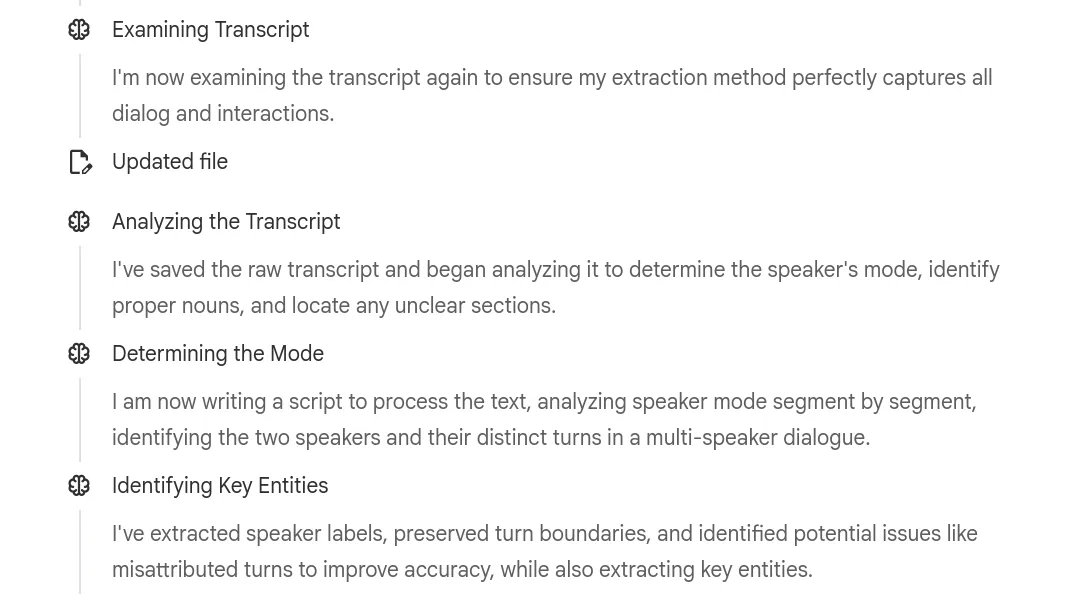
After around 4 minutes Gemini responded saying it had created a new, cleaned-up transcript file, along with a report that outlined the corrections it had made. This last step came directly from the original Claude skill, and was a genius move from Make Good. For example, Gemini explained the following change it made:
"packing absent" -> "banking apps in"
- Original text: "...How do people use packing absent..."
- Correction: "...How do people use banking apps in..."
- Confidence: Medium-High (85%)
- Rationale: The research questions focus on banking apps ("How do people use banking apps in their daily lives?"). "Packing absent" is a phonetically similar mis-hearing of "banking apps in".
Instead of the AI silently making loads of unwanted changes, this approach gives you a list you can go through and verify yourself. When double-checking against the recording I only had to make a few minor tweaks, and none of them fundamentally altered the meaning of the data. It is far, far more reliable than asking Gemini to do the same job.
You can find instructions and the prompt file in the GitHub repo. Not a GitHub person? Copy the text from the prompt file, then in Gemini Notebook go to + Add sources -> Copied text and paste them there. Congrats, you’re now a GitHub person.
Let me know if you try it out, if it helps you, or if you think it doesn’t work well enough for your purposes. You can reach me on jake@stitchwork.ing.